£2.99 for 10 tokens



Ever typed a prompt into an AI image generator, only to get something back that looks nothing like what was in your head? Prompting is an art, but more importantly, it is a science. Whether you are using Nano Banana for a quick social graphic or unlocking studio-grade realism with Nano Banana Pro, matching your words to the right engine is the secret to perfect generations every time.
How to Write an AI Image Prompt
The Complete Guide to Prompting Like a Pro
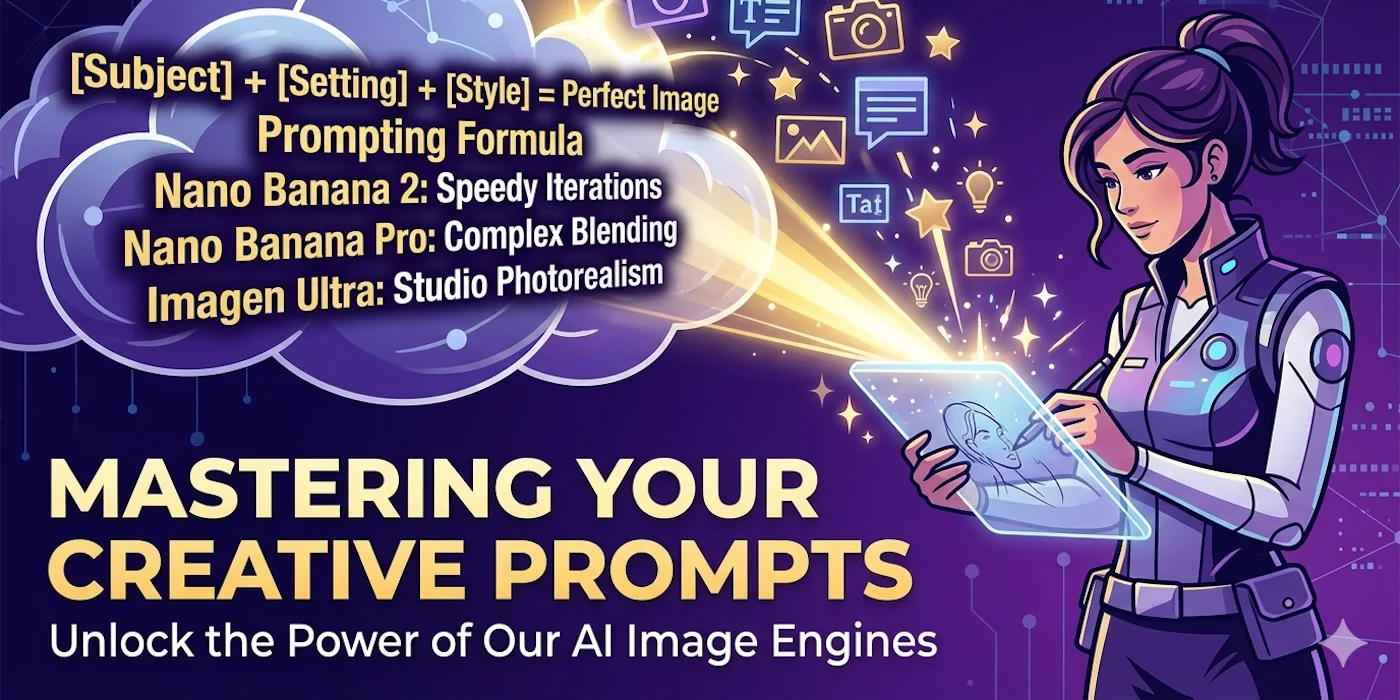
The interesting thing about AI image generation is that the model is only as good as the instructions you give it. Two people using the same engine with the same subject can get completely different results based purely on how they write their prompt. The difference between a vague instruction and a precise one is the difference between a generic stock image and something that looks exactly like the picture in your head.
Understanding the structure of a good prompt, and knowing which details actually matter, is what separates people who get frustrated with AI image tools from people who get consistently impressive results. This guide covers all of it.
The model does not know what you meant. It only knows what you wrote. Precision is the single most powerful tool available to any prompter.
The Golden Prompting Formula
Do not throw a wall of text at the AI. Instead, build your prompt using a simple 4-part framework that gives the engine everything it needs in a logical order:
Core Action & Subject
Start with what is happening and what the main subject is. Be specific about the subject and frame the action or pose clearly. "A fluffy ginger tabby cat napping" is more useful than "a cat." The subject and action form the foundation that everything else is built on.
Specific Details
Layer in the details that define the subject: materials, textures, colours, age, condition, and any specific visual features you want the engine to capture. "Fine leather patina grain and tarnished brass buckles" is a detail layer that transforms a generic object into something with character.
Setting & Lighting
Describe where the subject exists and how it is lit. Setting gives the AI spatial and environmental context. Lighting determines the mood of the entire image. "Soft directional window lighting in a warm library" is a complete setting and lighting instruction. "Good background" is not.
Style & Composition
Close with the visual style and camera framing. Is this cinematic? Editorial? Macro photography? A wide-angle landscape? Include depth of field direction, camera angle, and any stylistic reference. "Shallow depth of field, cinematic close-up" tells the engine exactly how to frame and render the final image.
Putting the formula together: "A fluffy ginger tabby cat napping in a warm sunbeam on a rustic wooden windowsill, highly detailed fur texture, soft directional afternoon light, cinematic close-up with shallow depth of field." Compare that to: "A cat in a room." Both describe the same subject. Only one produces something worth using.
Lighting & Atmosphere
Lighting is the single most impactful element you can add to a prompt. It determines the emotional register of the entire image before the subject even registers. Always include an explicit lighting descriptor rather than leaving it unspecified or asking for a "good background."
- Volumetric lighting / Cinematic. Creates drama, visible light rays, deep shadows, and a film-like quality. Suited to portraits, action subjects, and anything that benefits from a sense of scale or tension.
- Golden hour. Soft, warm, natural afternoon sunlight with long shadows and a gentle orange-gold tone. The most flattering natural light for portraits, landscapes, and lifestyle photography.
- Studio lighting. Clean, controlled illumination with no environmental distractions. Ideal for product photography, portraits, and any output destined for commercial use.
- Neon / Cyberpunk. Sharp, colourful contrast with wet pavement reflections and glowing signage. High-energy and visually striking. Best used intentionally rather than as a default.
- Overcast / Diffused. Soft, even, shadow-free lighting that suits moody or melancholic subjects and works well for fashion and portrait work where you want even skin rendering.
Composition & Camera Angles
Tell the AI precisely where to position the camera. The composition framing changes the entire feel of an image and is one of the most frequently overlooked elements of a prompt.
- Macro lens / Close-up. Perfect for capturing fine textures: jewellery, animal fur, fabric grain, gourmet food details. Implies shallow depth of field and intimate scale.
- Flat lay / Top-down. A directly overhead perspective. Ideal for clean product showcases, editorial design assets, food photography, and web illustrations where you need a distraction-free layout.
- Wide-angle landscape. Captures expansive environments, architectural scale, and epic natural vistas. Emphasises depth and the relationship between subject and environment.
- Portrait / Eye-level. A natural, direct perspective that works for character portraits, lifestyle subjects, and anything where human connection is the point.
- Low angle / Worm's eye. Looking upward at the subject. Creates a sense of power, dominance, or drama. Effective for architecture, heroic character shots, and bold product angles.
Typography & Text Rendering
If you want crisp text embedded directly inside your image, two things matter: wrapping the exact text in quotation marks and stating precisely where it should appear and in what style.
Specify the exact text in quotes
Use quotation marks around the precise text string you want rendered. The AI reads the quoted content as literal text to be placed in the image rather than as a descriptive instruction. "Script font text reading 'Fresh Flowers'" is a clear instruction. "Text that says flowers" is ambiguous.
Describe the font style and placement
Name the font style (serif, script, sans-serif, bold display, hand-lettered) and specify where in the frame the text lives. "Carved wooden letters on a hanging sign above the entrance" gives the AI spatial, material, and stylistic context that produces a coherent result.
Use Nano Banana Pro for complex text layouts
Nano Banana Pro handles multi-step spatial instructions and text template formatting particularly well. If your prompt involves precise text positioning, multiple text elements, or text as a key design component, route it to Nano Banana Pro rather than the base models.
Matching Your Prompt to the Right Model
NeonSnap gives you access to distinct AI engines built for different outputs. The same prompt routed to the wrong engine will produce a noticeably inferior result. Match your target output to the ideal engine before you start writing.
- Nano Banana / Nano Banana 2. Optimised for speed and rapid iteration. Keep prompts straightforward and action-oriented. These engines excel at conversational, snappy variations and are the right choice for quick social assets, concept exploration, and drafting before committing to a final generation.
- Nano Banana Pro. The studio-grade engine, built for complex blending, precise spatial arrangements, and photorealistic detail at native 4K. Feel free to layer multi-step instructions, and be rich with atmospheric, sensory descriptors. Lean heavily on material detail, lighting nuance, and physical texture. Nano Banana Pro rewards density and precision. Thin prompts underuse what the engine can actually produce.
lightbulb
Not sure which model to start with? Use Nano Banana for a fast first draft to confirm the concept is working, then move to Nano Banana Pro with a refined, detail-rich version of the same prompt for your final output.
Nano Banana Pro Power Prompts
These pre-optimised templates are built to demonstrate what Nano Banana Pro can produce when given a properly structured, detail-rich prompt. Copy any of them directly into the generator to see the engine working at its best, then use them as structural templates for your own subjects.
work Product & Texture Macro
"A cinematic macro photo of a vintage leather briefcase sitting on an old dark oak desk. Sharp focus on fine leather patina grain, precise accent stitching, and tarnished brass buckles. Soft, directional window lighting, shallow depth of field with a beautifully blurred library background."
person Character Portrait Realism
"A raw, hyper-detailed portrait of an elderly fisherman wearing a weathered knit watch cap. Intricate skin texture showing deeply defined wrinkles, pores, and silver stubble. Soft cinematic rim lighting tracing his face, eyes conveying depth, capturing a genuine subtle smile against a soft-focus seaside harbour background."
restaurant Commercial Food Photography
"Commercial food photography of a gourmet double cheeseburger on a slate platter. Melting sharp cheddar dripping down crispy applewood bacon layers, toasted brioche bun with glistening sesame seeds, crisp green lettuce leaves with tiny water droplets. Perfect studio lighting highlighting glazes, ultra-sharp focus."
landscape Landscape Atmospheric Depth
"A breathtaking wide-angle landscape shot of the Scottish Highlands at dawn. Drifting low-lying valley fog, crisp morning sunbeams breaking through dramatic grey clouds, highlighting wet mossy stone walls and vibrant purple heather fields. Volumetric atmospheric haze, deep scale depth."
villa Architectural Design & Lighting
"An architectural digest photography style shot of a minimalist concrete desert villa during twilight. Warm glowing interior lights visible through massive glass panels, perfectly casting onto a crystal-clear lap pool. Crisp sharp structural lines, modern geometric silhouettes, rich evening sky gradient background."
Iteration: How to Improve a Generation Without Starting Over
Most great AI-generated images are not produced in a single generation. They are the result of a starting point refined through targeted follow-up prompts. Knowing how to iterate efficiently is as important as knowing how to write the initial prompt.
- Do not restart, remix. If an image is close but not quite right, upload it back to the canvas and prompt only for the specific change you want. "Swap the jacket for a black leather biker jacket" is a more effective follow-up than rewriting the entire prompt from scratch.
- Isolate one variable at a time. Change the lighting, or the background, or the subject detail in each iteration rather than changing everything simultaneously. This makes it easier to identify which element was producing the result you wanted.
- Use spatial anchors for complex layouts. If you are positioning multiple elements within a single image, break them out spatially. "On the far left, a rustic coffee mug... resting in the centre, an open book..." gives the engine structural context that produces more coherent multi-element compositions.
- Save prompts that work. When a prompt structure produces exactly what you want, keep it. The same formula applied to a different subject will frequently produce equally strong results without requiring you to rebuild the structure from scratch.
Try it on NeonSnap
Put these prompts to work on NeonSnap's AI image generator
NeonSnap's AI image tools give you access to Nano Banana and Nano Banana Pro directly in your browser. Take any of the power prompts above, paste them in, and start generating. No setup required.
Start generating free →Frequently Asked Questions
What makes a good AI image prompt?
A good prompt combines a clear subject and action with specific details, setting and lighting, and a defined style or composition. The golden formula is: [Core Action & Subject] + [Specific Details] + [Setting & Lighting] + [Style & Composition]. Vague prompts produce generic results. Descriptive, layered prompts give the AI the context it needs to produce something close to your vision.
What is the difference between Nano Banana and Nano Banana Pro?
Nano Banana models are optimised for speed and rapid iteration. They suit quick concepts and social assets. Nano Banana Pro is a studio-grade engine built for commercial output, native 4K resolution, and flawless material textures. Nano Banana Pro rewards rich, atmospheric prompts. Nano Banana responds well to clear, action-oriented instructions.
How do I add text to an AI-generated image?
Wrap the exact text you want in quotation marks and describe precisely where and how it should appear. For example: "A vintage wooden sign hanging over a garden entrance, script font reading 'Fresh Flowers'." Nano Banana Pro handles text layouts and spatial arrangements particularly well.
How do I improve an image that is almost right?
Do not start from scratch. Upload the image back to the canvas and use a targeted follow-up prompt describing only what you want changed. For example: "Swap the jacket for a black leather biker jacket" or "Change the background to a golden hour outdoor setting." This iterative approach produces better results than rewriting the entire prompt each time.
What lighting terms should I use in my prompts?
Always include an explicit lighting term. Volumetric or cinematic lighting creates drama and depth. Golden hour produces soft, warm natural light. Studio lighting gives clean, controlled illumination for commercial use. Neon or cyberpunk creates sharp, colourful contrast. Overcast produces even, shadow-free light suited to portraits and fashion.
Start generating with better prompts, free.
NeonSnap's AI image tools give you access to Nano Banana and Nano Banana Pro directly in your browser. Take the formulas from this guide and put them to work straight away.
Try NeonSnap free