 £2.99 for 10 tokens



Premium model, highest quality and most creative results
Add a photo and a prompt to start
Your generated image will appear here
Affordable AI Editing & Generation for Creators with Nano Banana
Fast, precise, and photorealistic edits powered by Google’s Gemini 2.5 Flash Image Preview.
NeonSnap brings you the power of Google’s Nano Banana AI editing engine, designed for creators who demand professional-quality results without the hassle. With intuitive natural language editing, you can transform images using simple prompts like “add a sunset glow” or “replace the chair with a throne.” Every output stays consistent and reliable, even across iterative edits or batch workflows. From pixel-perfect object replacement and background changes to lightning-fast performance and physics-aware realism, Nano Banana ensures each edit looks natural, sharp, and production-ready.
AI-Powered Image Editing. Refine, Enhance, Transform.
Edit your photos with intelligent precision using AI.
With Nano Pro's advanced contextual understanding, NeonSnap gives you the tools to retouch, enhance, and transform your images with natural language prompts. Adjust lighting, remove distractions, change backgrounds, or subtly refine details, all while keeping your photo looking completely authentic.
Natural, Photorealistic Results
No harsh edits or obvious AI tells. Whether you're cleaning up a shot or making bold creative changes, Nano Pro ensures every edit blends seamlessly, staying sharp, true-to-life, and exactly on your vision.
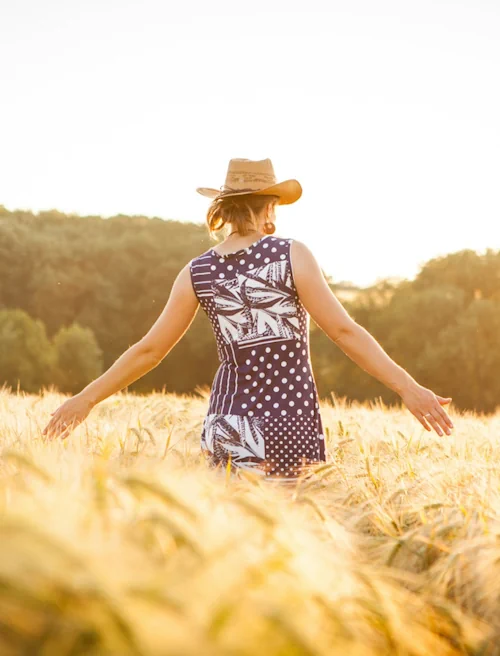
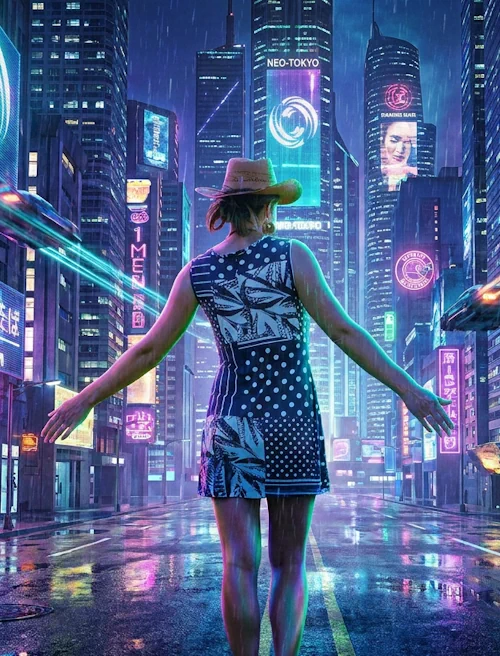
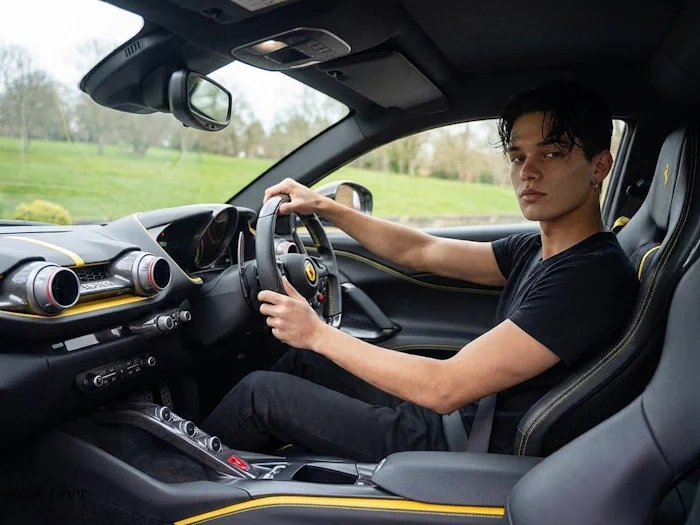
AI Image Merge. Combine Photos with Seamless Precision
Blend multiple images into one photorealistic scene.
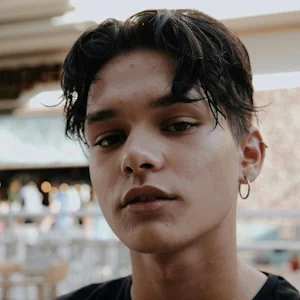
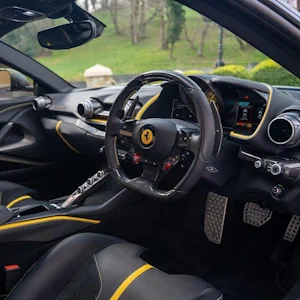
NeonSnap uses Google’s Nano Banana editing engine to deliver flawless AI image merging. Drop a portrait into a lifestyle shot, place products in new settings, or create visuals that look naturally captured in a single frame. With pixel-perfect blending, lighting alignment, and perspective accuracy, every merge feels real, not artificial.
AI Object Insertion. Add Anything, Anywhere with Photoreal Precision
Insert objects seamlessly with photorealistic AI editing.
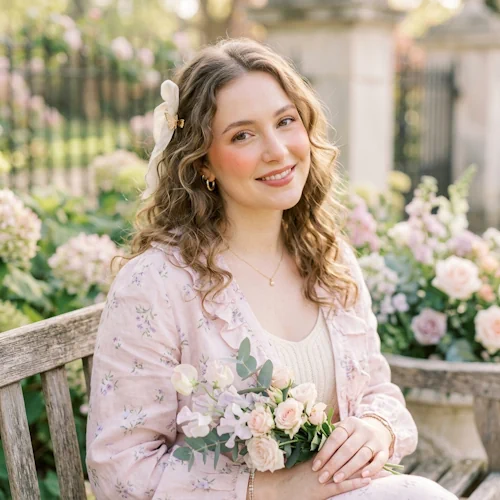
With Nano Banana’s contextual editing, NeonSnap lets you drop new objects into photos while keeping lighting, perspective, and scale perfect. From holding a bunch of flowers to holding a glass of wine, every addition looks real with pixel-perfect accuracy.
Consistent & Reliable Results
No weird distortions or style drift. Whether you’re refining a photo or generating fresh content, NeonSnap ensures outputs stay sharp, realistic, and on-brand.

Want Better Results?
This page is a general-purpose AI image editor, it can handle a wide range of edits, but for certain things like hair change, outfit change, glow-up etc.. you will consistently get better results using one of NeonSnap's dedicated tools. Those pages use prompts and pipelines that have been specifically tuned for that task, so the AI understands exactly what you are trying to achieve without you having to describe every detail.
You are welcome to try any edit here, and most times it will work great. But if you are not getting the result you want then try the dedicated pages. See the full list here
Editing With Models From Other Labs
Google's models are quick and forgiving. The other five each bring something the Nano Bananas don't, and they all work from the same prompt box and upload area. Here's when to reach for each one.
FLUX.2 Max
Black Forest Labs' editor. Ask for a new sky, a different jacket or a wet street and it changes that and only that, with the rest of the photo left alone. The most photographic results of the set.
Seedream 5.0 Pro
ByteDance's editor. Good at precise, region-level changes, and it can rewrite text on signs, packaging and posters in 14 languages without mangling the letters.
GPT Image 2
OpenAI's editor and the one for fiddly instructions. Swap a product label, fix a typo in a photo, move one object and leave three others: it follows long, specific prompts more faithfully than anything else here. Slower, so expect a minute or so.
Qwen Image 3
Alibaba's editor. Fast, economical, decent with English and Chinese text. It takes up to 3 reference photos rather than 5.
Muse Image
Meta's editor. Strong on fine detail that has to survive the edit: charts, plots, QR codes and small print stay accurate.
At-a-Glance Model Comparison
How to Edit an Image with AI
Upload your photo, describe the change you want, and let AI handle the rest. Here's how it works.
- 1
Upload Your Image Click the upload area and select the photo you want to edit. You can add up to 5 reference images if you want to blend or combine them.
- 2
Write an Edit Prompt Describe the change you want in plain language. Be specific about what to change, add, or remove. For example: "replace the background with a sunset beach" or "remove the person on the left".
- 3
Choose a Model Pick Nano Banana 2 or Nano Banana Pro from Google, or sign in for GPT Image 2, FLUX.2 Max, Seedream 5.0 Pro, Qwen Image 3 or Muse Image.
- 4
Generate the Edit Hit the button and your edited image will appear in a few seconds. Download it or open it full size from the result panel.
- 5
Iterate if Needed Not quite right? Adjust your prompt and generate again. Small wording changes can make a big difference to the result.
Frequently Asked Questions
Is the AI image editor free?
Yes, completely free. The Nano Banana models need no account at all. The other five need a free sign-in, mainly so we can keep an eye on what they cost us. No subscription, no credit card either way.
What types of edits can I make?
You can change backgrounds, remove or replace objects, adjust lighting and style, merge multiple photos, insert new elements, and more, all using plain language prompts.
Which model should I pick for editing?
Start with Nano Banana 2 for everyday edits; it's quick and pulls context from Google Search. Nano Banana Pro gives the highest quality output for edits you plan to publish. FLUX.2 Max is the most photographic and leaves untouched areas alone. GPT Image 2 follows fiddly instructions best and is the one for fixing text. Seedream 5.0 Pro is strong on precise regional changes and multilingual text. Qwen Image 3 is the economical option, and Muse Image keeps fine detail like charts and QR codes intact.
How do I write a good edit prompt?
Be specific about what you want changed and what should stay the same. Instead of "change the background", try "replace the background with a rainy Tokyo street at night, keep the subject unchanged". The more detail you give, the more accurate the result.
How many images can I upload?
Up to 5 reference images for every model except Qwen Image 3, which takes 3. Useful for image merging, style transfer, or giving the AI several visual references to work from.
Can I download the edited image?
Yes. Hit the download button in the top corner of the result, or open it full size in a new tab. The edited image is yours to keep.
How long does an edit take?
Nano Banana 2, Nano Banana Pro, FLUX.2 Max and Muse Image usually come back in 20 to 40 seconds. Seedream 5.0 Pro takes about a minute. GPT Image 2 and Qwen Image 3 are the slow ones, often a minute or two. The page keeps the spinner up until it's done.