£2.99 for 10 tokens



Your LinkedIn profile photo is the first thing people see when they find you online. Before they read your headline, before they look at your experience, before they decide whether to connect, they see your face. Or they don't, because you still have the grey silhouette placeholder from when you first created your account in 2019!
How to Update Your LinkedIn Profile Photo
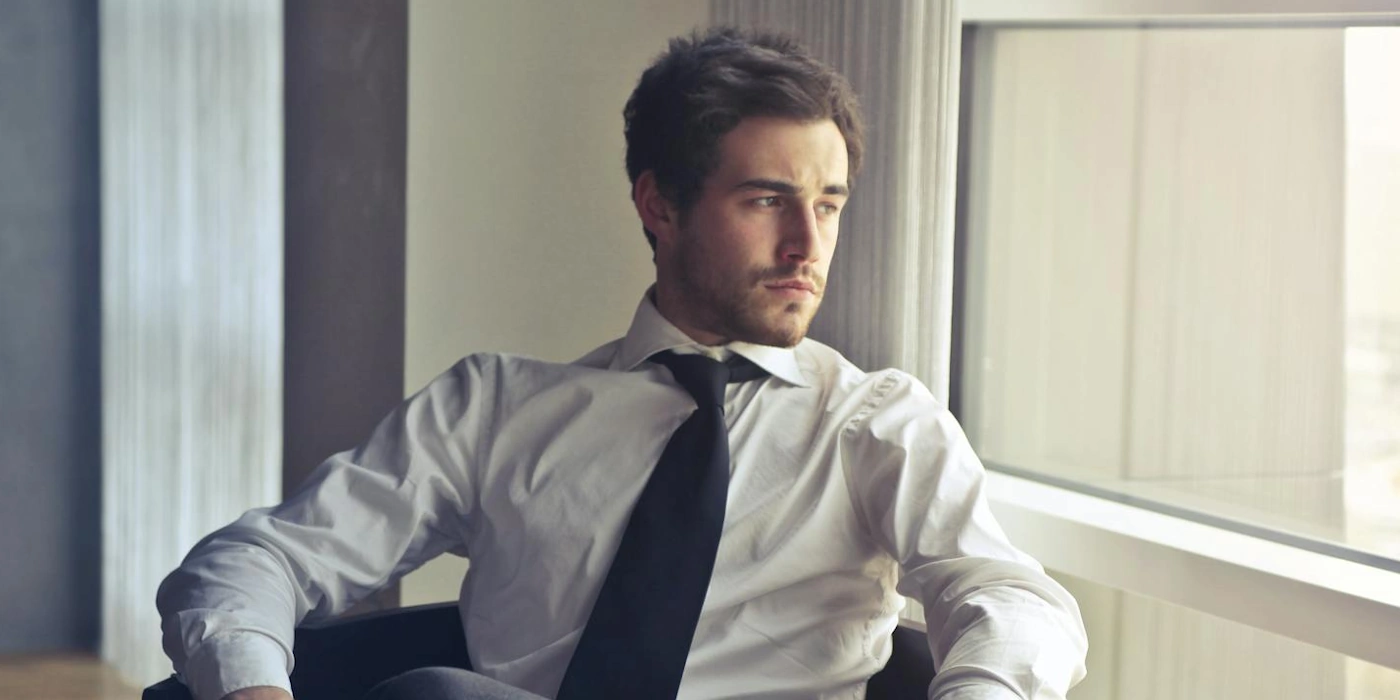
LinkedIn data is unambiguous on this, profiles with a photo receive up to 21 times more profile views and up to 9 times more connection requests than those without. And the quality of that photo matters too, a polished, professional headshot creates a meaningfully stronger impression than a cropped holiday snap or a blurry office selfie.
This guide covers everything you need to know: when to update your photo, what makes a great LinkedIn profile picture, how to take one yourself, and how AI can get you a professional result in seconds without booking a photographer.
Your LinkedIn photo isn't vanity. It's the single most visible signal of whether you take your professional presence seriously.
How to Change Your LinkedIn Profile Photo
The mechanics are straightforward. Here's the step-by-step for both desktop and mobile:
On desktop
Go to your LinkedIn profile page. Click on your current profile photo, or the grey placeholder if you don't have one yet. A panel will appear giving you the option to add or change your photo. Click it, select your image file from your computer, adjust the circular crop to frame your face well, and save. The update takes effect immediately.
On mobile (iOS or Android)
Open the LinkedIn app and tap your profile icon to go to your profile. Tap on your current photo or the placeholder. Select 'Edit' or 'Add photo', choose an image from your camera roll or take a new one, adjust the crop, and save. The photo updates across your profile, search results, and messages instantly.
Get the crop right
LinkedIn displays profile photos in a circular crop. Position your face in the centre with a small amount of space above your head. Your eyes should sit roughly in the upper third of the circle. Avoid cropping too tight. A sliver of shoulder and background gives the photo natural breathing room and looks more professional than a face that fills the entire frame.
Check the file requirements
LinkedIn accepts JPG, PNG, and GIF files up to 8MB. The minimum recommended size is 400 x 400 pixels, though higher resolution images display more sharply across devices. A square image works best given the circular crop. If your photo isn't square, LinkedIn will let you adjust the crop but you may lose parts of the image.
When Should You Update Your LinkedIn Photo?
Most people update their LinkedIn photo far less often than they should. A photo that looked current five years ago now signals either neglect or a significant change in your appearance that creates a disconnect when people meet you in person. Here are the clear signals that it's time for a new one:
- It's more than three to five years old. Appearance changes gradually and often more significantly than we notice day to day. A photo from five years ago may look noticeably different from how you present yourself now.
- You've changed your hair significantly. Hair is one of the most identifying features in a photo. If your current photo shows you with long hair and you now have a short cut, or vice versa, people won't recognise you when you meet.
- You've changed roles or industries. The photo you used as a graduate trainee may not serve you well as a senior manager. Your photo should reflect the professional you are now, not the one you were when you first got the job.
- The quality is poor. Blurry, dark, or heavily compressed images immediately undermine an otherwise strong profile. If you're not sure whether your photo is good enough, it probably isn't.
- It's not actually you. Company logos, cartoon avatars, and pet photos are not professional profile photos. They are surprisingly common and they consistently hurt engagement with your profile.
- You're actively job searching or building your network. If you're putting effort into your LinkedIn presence right now, your photo needs to be working as hard as the rest of your profile.
What Makes a Great LinkedIn Profile Photo?
LinkedIn profile photos that perform well share a consistent set of characteristics. Understanding what they have in common is more useful than trying to replicate a specific look.
- Your face fills roughly 60% of the frame. Too far away and you're lost; too close and it feels aggressive. Shoulders-and-above is the sweet spot, enough context to feel natural, close enough for your expression to read clearly.
- Good lighting. Soft, even light, ideally from a large window on an overcast day, flatters almost everyone. Harsh shadows, backlighting (where the light source is behind you), and overhead lighting that creates dark circles under the eyes all undermine an otherwise decent photo.
- A neutral or blurred background. The background should not compete with you for attention. Plain walls, soft outdoor bokeh, and clean office environments all work well. Cluttered backgrounds, bold patterns, and anything overtly personal or casual read as unprofessional.
- A natural, confident expression. You don't have to smile. A composed, engaged expression works equally well and often reads as more authoritative. What you want to avoid is a forced or uncomfortable expression, which is easy to produce when you're self-conscious in front of a camera.
- Appropriate clothing for your industry. What counts as professional varies significantly between industries. A finance professional and a creative director have very different standards. The common principle is that your clothing should reflect how you'd present yourself in a professional context, whatever that looks like for your field.
Try it with NeonSnap
A professional LinkedIn headshot in seconds, free
NeonSnap's AI LinkedIn headshot generator transforms any photo into a polished, professional portrait. Clean lighting, neutral backgrounds, and a studio-quality finish, without the studio appointment or the price tag.
Try AI LinkedIn Headshot free →How to Take a Great LinkedIn Photo Yourself
You don't need a professional photographer to get a great LinkedIn photo. A modern smartphone, decent natural light, and a few minutes of setup will get you a result that's significantly better than most profiles. Here's how:
Find a window with indirect natural light
Position yourself facing a large window on an overcast day, or when the sun isn't directly shining through it. This gives you soft, even light with no harsh shadows, exactly what professional portrait photographers recreate with studio lighting. Direct sunlight from the side or behind creates shadows and hotspots that are difficult to correct in editing.
Find a clean background
A plain white or light grey wall is ideal. If you don't have one, a plain-coloured door, a bookshelf shot from far enough away to be blurred, or a simple outdoor setting all work. Avoid anything that puts your home environment prominently on display. A kitchen, a messy desk, or visible personal items all distract from the professional impression you're trying to create.
Set your phone at eye level or slightly above
Use a tripod, a stack of books, or prop your phone against something stable. The lens should be at eye level or fractionally above. Never below. Shooting from below is unflattering for everyone, and holding the phone yourself creates an obvious selfie angle that reads as casual regardless of everything else you do right.
Use the rear camera with a timer
The rear camera on any recent smartphone produces significantly better image quality than the front-facing camera. Set a 10-second timer, step back into frame, and let it shoot. Use portrait mode if your phone has it. The background blur it creates makes the photo feel more professional without any editing.
Take at least 20 frames
Professional photographers take hundreds of shots to get a handful of usable images. Give yourself the same latitude. Vary your expression slightly between shots. Relaxed smile, composed and direct, slight head tilt. The difference between the best and worst photo in a batch of 20 is almost always significant, and you only need one good one.
lightbulb
If your photo is good but the background isn't working, don't reshoot. NeonSnap's AI background changer can replace it with a clean, professional setting in seconds, no green screen, no editing skill required.
Using AI to Get a Professional LinkedIn Photo
If taking a new photo isn't practical right now, or if you have a decent photo that just needs a professional finish, AI headshot generation is the fastest route to a polished LinkedIn photo. Modern AI tools have advanced significantly and can produce results that are indistinguishable from studio photography.
The process is straightforward: upload a clear photo of yourself, and the AI transforms it into a professional portrait with appropriate lighting, a clean background, and a polished finish. The whole thing takes seconds rather than the half-day that a studio shoot requires.
- → Upload a clear, well-lit photo. Natural daylight produces the best results
- → Make sure your face is clearly visible. No sunglasses, hats, or heavy shadows
- → Use a recent photo. The output should look like you now
- → A neutral expression works best. The AI can enhance but works better without extreme expressions to correct
Also on NeonSnap
Fix your background without reshooting
Already have a good photo but the background is letting it down? NeonSnap's AI background changer replaces any background with a clean, professional setting instantly. Upload your photo, choose your background, done.
Try Background Change free →LinkedIn Photo Best Practices: Quick Reference
- Minimum size: 400 x 400 pixels, higher resolution displays sharper
- File format: JPG or PNG, maximum 8MB
- Crop: Square image, circular display, face centred, shoulders visible
- Background: Plain, neutral, non-distracting
- Lighting: Soft and even. Avoid harsh shadows or backlighting
- Expression: Natural and engaged. Forced smiles read as forced
- Clothing: Professional and appropriate for your industry. Solid colours over patterns
- Update frequency: Every three to five years, or after any significant change in appearance or career
Why Your LinkedIn Photo Matters More Than You Think
It's easy to dismiss the profile photo as a minor detail compared to your headline, your experience section, or your recommendations. The data suggests otherwise.
LinkedIn has published figures showing that profiles with photos receive 21 times more profile views and 9 times more connection requests than those without. But beyond the numbers, there's something more fundamental at play. In a professional context where most interactions begin online, your photo is doing the job that a handshake and a first impression do in person. It signals whether you take the interaction seriously.
Recruiters and hiring managers make rapid assessments based on profile photos, not about attractiveness, but about professionalism, approachability, and whether the person behind the profile appears to be someone worth engaging with. A polished, well-lit headshot that looks current and professional creates a strong first impression before a single word of your profile has been read. A grey placeholder, a blurry cropped group photo, or an image from five years ago creates a different kind of impression entirely.
It's a small thing that takes very little time to fix. The return on that time is disproportionate.
Frequently Asked Questions
How do I change my LinkedIn profile photo?
Go to your LinkedIn profile page and click on your current photo or the placeholder. Select 'Add photo' or 'Change photo', upload your new image, adjust the circular crop to frame your face well, and save. The change takes effect immediately across your profile and in search results.
What size should a LinkedIn profile photo be?
LinkedIn recommends a profile photo of at least 400 x 400 pixels, with a maximum file size of 8MB. Square images work best as LinkedIn displays profile photos in a circular crop. The ideal resolution is between 400 x 400 and 7680 x 4320 pixels for the sharpest display across all devices.
How often should I update my LinkedIn profile photo?
Update your LinkedIn photo whenever it no longer looks like you. A general guideline is every three to five years, or sooner after a significant change in your appearance or a career change. Using a photo more than five years old risks a disconnect when you meet connections in person.
Does your LinkedIn profile photo affect job prospects?
Yes, significantly. LinkedIn data shows that profiles with a photo receive up to 21 times more profile views and up to 9 times more connection requests than profiles without one. A polished, professional headshot creates a stronger first impression than a casual or low-quality image.
Can I use an AI-generated photo for LinkedIn?
Yes, AI-generated headshots are widely used on LinkedIn and are indistinguishable from studio photography when produced by a quality tool. NeonSnap's free AI LinkedIn headshot generator transforms any photo into a professional portrait suitable for LinkedIn and other professional profiles.
What is the best background for a LinkedIn profile photo?
A plain, neutral background: white, light grey, or a soft blurred environment, works best. Avoid busy, cluttered, or overly personal backgrounds. If your photo has an unsuitable background, NeonSnap's AI background changer can replace it with a clean, professional setting instantly.
Update your LinkedIn photo today, free.
NeonSnap's AI LinkedIn headshot generator delivers a polished, professional portrait in seconds. No photographer, no booking, no waiting.
Try AI LinkedIn Headshot free