 Make yours now
 Enough for 10 ten second videos






AI Image Extender
Make any photo wider, taller or a new shape. Put the photo where you want it in the frame and AI fills the empty space to match.
What is an AI image extender?
An AI image extender is a tool that makes a picture larger than the original by generating what could plausibly lie beyond its edges. It is also called an image expander, uncropping or outpainting. With NeonSnap's extender you choose the new shape, drag the photo to where it should sit in the frame, and the AI paints the missing area so it matches the original. The AI does not redraw your own photo: only the new space is generated.
| What it does | Extends a photo beyond its edges and fills the new space to match |
|---|---|
| Shapes | 1:1, 4:5, 3:4, 2:3, 9:16, 4:3, 3:2 and 16:9, or any shape from 1:3 to 3:1 with Free |
| Where the photo goes | Anywhere in the new frame: you drag it, resize it or snap it to an edge |
| Your photo | JPEG, PNG or WebP up to 10 MB, kept at up to 2048 pixels on its longer side |
| Largest result | 4096 pixels on the longer side |
| Time | About 20 seconds; the largest results take about 30 |
| Cost | 1 credit per extend, given back if it fails. Framing your photo needs no account |
| AI model | Bria image expansion |
Updated
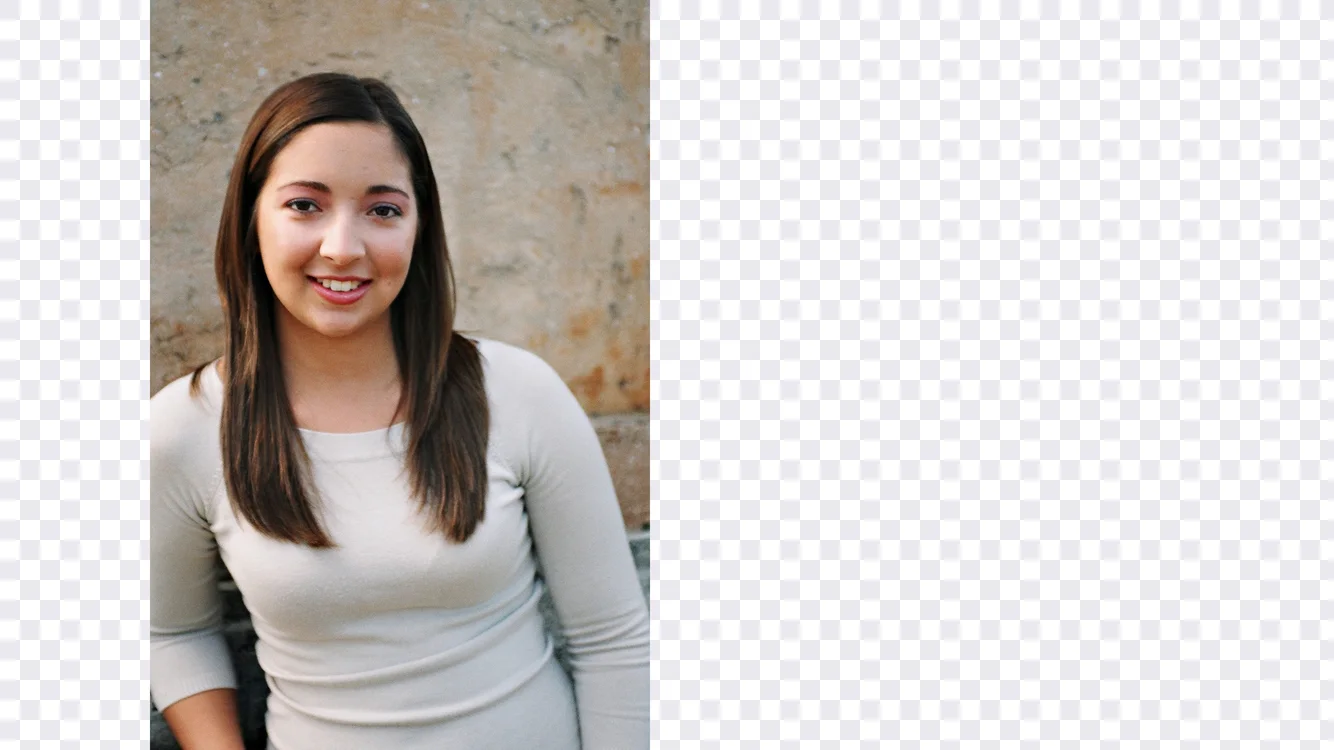
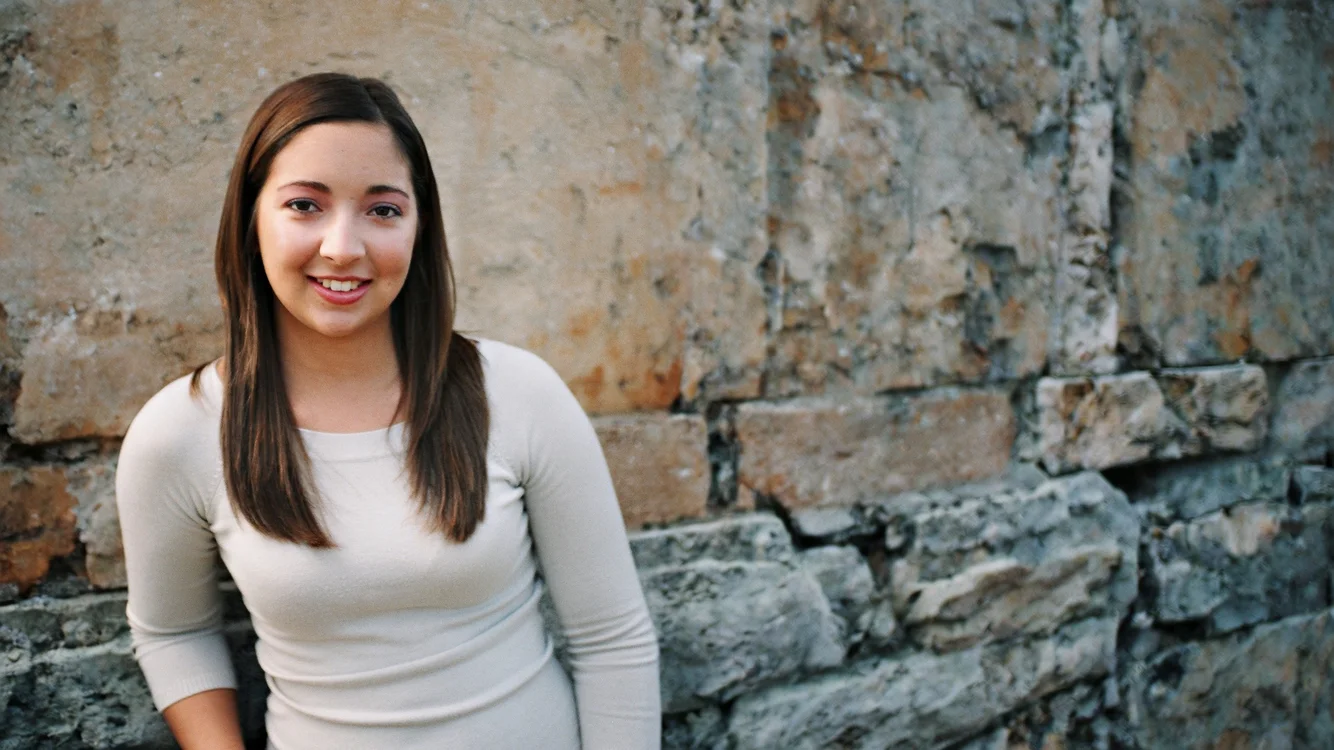
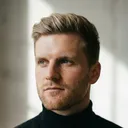
Example: a portrait extended to 16:9
How do I extend a photo with AI?
- Add your photo
Upload a JPEG, PNG or WebP of up to 10 MB, or open one from My Images with Extend.
- Pick the new shape
Choose square, 4:5, 9:16, 16:9 or another shape, or pick Free and drag the frame's edges yourself.
- Put the photo where you want it
Drag the photo inside the frame, resize it from a corner, or snap it to an edge. The checked area is the new space.
- Generate
Add a few words about what should fill the space if you like, then press Generate. The extended image is ready in about 20 seconds.
Which shape should I choose?
Pick the shape of the place the picture is going. These are the shapes on the tool and what each is used for.
| Shape | Used for | Typical size in pixels |
|---|---|---|
| 1:1 | Profile pictures, square Instagram posts, product photos | 1080 x 1080 |
| 4:5 | Instagram portrait posts | 1080 x 1350 |
| 3:4 | Portrait prints and tablet screens | 1536 x 2048 |
| 2:3 | Pinterest pins, posters and 6 x 4 inch portrait prints | 1000 x 1500 |
| 9:16 | TikTok, Instagram Reels and Stories, YouTube Shorts, phone wallpapers | 1080 x 1920 |
| 4:3 | Slides, tablets and classic camera photos | 2048 x 1536 |
| 3:2 | 6 x 4 inch landscape prints and DSLR photos | 1800 x 1200 |
| 16:9 | YouTube thumbnails and videos, desktop wallpapers, website banners | 1920 x 1080 |
| Free | Anything else from 1:3 to 3:1, such as a 3:1 header for X or a tall banner | You choose |
Extending, cropping, resizing or upscaling: which do I need?
| Method | What it does | Use it when |
|---|---|---|
| Extending (outpainting) | Adds new picture around the photo. Nothing is cut and nothing is stretched. | The photo is the wrong shape, or the subject is too tight to the edge. |
| Cropping | Cuts part of the photo away to change its shape. | There is spare room around the subject that you can afford to lose. |
| Resizing or stretching | Squeezes the same picture into a new shape, so people and objects look distorted. | Almost never for photos of people. |
| Upscaling | Keeps the shape and adds pixels, so the same picture is sharper and larger. | The shape is right but the photo is too small or soft.Upscale a photo |
| Editing | Changes what is inside the photo: an object, the background, the clothes. | The shape is right but the content is not.Edit an image |
How well does it work?
We tested the extender in November 2026 on portraits, landscapes and street scenes. Most extends finished in 12 to 21 seconds, and the largest result we made, 4096 by 4096 pixels, took 32 seconds. Comparing each result with the photo we sent, the area that was the original photo had not been redrawn. The widest shape (3:1) and the tallest (1:3) both worked, and so did a frame where 68% of the picture was new.
It is not perfect. Where the new area meets a soft, out-of-focus background, the fill can be a little sharper than the photo, which you can spot if you zoom right in. Writing that the AI invents, such as shop signs, is not real text. And when a person is cut off by the edge of the photo, the AI will draw the rest of them, so check hands and feet.
Tips for a clean result
- Put the new space where the background is simplest. Sky, walls, grass and water extend more convincingly than crowds or text.
- Use the hint when you want something specific, such as more of the beach or an empty studio wall. Leave it empty to simply carry the scene on.
- For a big change, extend in two steps: make it a little wider, then press Extend again.
- Keep faces away from the edge you are extending, so the join does not run through a person.
- If the result will be printed or shown large, upscale it afterwards.
Questions about extending images
What is the difference between extending, uncropping and outpainting?
They are three names for the same thing: adding new picture beyond the edges of an image. Outpainting is the technical term, uncropping is the everyday one, and image extender or image expander is what most tools call it.
How is this different from other image expanders?
Most tools only let you pick a new shape and put the photo in the middle. Here you move and resize the photo inside the new frame, so you decide where the extra space goes: all to one side, all above, or a little all round.
Does it change my original photo?
No. The AI does not redraw the part of the picture that was your photo, so faces stay as they were. Only the new space is generated. Where the new area meets a soft or out-of-focus background you may be able to see the join if you zoom right in.
What shapes can I extend to?
Square 1:1, 4:5, 3:4, 2:3, 9:16, 4:3, 3:2 and 16:9, which covers Instagram, TikTok, YouTube and most banners. Free lets you drag the frame to any shape between 1:3 and 3:1.
How big is the result?
Your photo keeps its own resolution, up to 2048 pixels on its longer side, and the frame grows around it. The finished image can be up to 4096 pixels on its longer side.
Can I say what goes in the new space?
Yes. There is an optional box where you can write a few words, such as more of the stone wall or a sandy beach. Leave it empty and the AI simply carries the scene on.
Can I turn a portrait photo into a landscape one?
Yes. Pick 16:9 or 3:2, place the portrait where you want it in the wide frame, and the AI fills both sides. It works the other way too: a landscape photo can become a 9:16 portrait for TikTok or Reels.
What does it cost?
Each extend uses 1 credit from your NeonSnap account. Lining up your photo costs nothing and needs no account, so you can try the framing before you sign in. If an extend fails, the credit is given back.
Is my photo stored?
Your photo is sent to Bria, the AI model that extends it, through our provider fal. NeonSnap does not keep the photo you upload. The extended result is saved to My Images in your account, where you can download it or delete it.
Which AI extends the photo?
Bria's image expansion model, which Bria says is trained only on licensed images.
What to do with your extended image
 Edit Image
Change anything in a photo
 Upscale
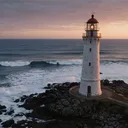
Sharpen and enlarge any photo
 Create Video
Your first video is free
Every extended image is saved to My Images. See all NeonSnap tools.